About the commands in this guide: every command is copied from, and checked against, the official documentation linked next to it, as of October 2026. We haven't run them on AMD hardware ourselves. Drivers and runners change quickly. If a command behaves differently on your system, the linked page is the authority.
Most local LLM guides stop when the model says hello, and many assume Nvidia. This one is for Radeon and Ryzen AI owners: check what your hardware officially supports, pick a runner and backend (ROCm or Vulkan), fit a model to your memory, run it behind a standard API, then test it on your own tasks against cloud options.
It does not recommend specific models, because rankings change every few weeks. It gives you the method and points to calculators that keep current model lists.
1. Do you need local?
Local makes sense when one or more of these apply:
- Privacy. Prompts and documents never leave your machine: client data, contracts, anything you would not paste into a website.
- Offline use. Once the model file is downloaded, no internet connection is needed.
- Predictable cost. No per-request fees. You pay for hardware and electricity, which can win at high daily volume.
- Control. You choose the model version, and it does not change under you.
Cloud is often the better call when:
- Your tasks need the strongest reasoning or coding quality, and a small local model fails your tests.
- Your volume is low. A few requests a week rarely justifies new hardware.
- You need access from anywhere, with no machine to keep running.
- Hardware with enough memory (section 2) would cost more than years of API usage.
If cost decides it, try a break-even calculator such as willitlocal.com or tokenbarometer, or read this worked comparison. Then test (section 6) before you decide.
2. Read your hardware
Two numbers decide what you can run: how much fast memory you have, and how fast it is. On AMD, first check whether your card has official ROCm support on your OS.
The ROCm support matrix
ROCm is AMD's GPU compute stack, used by Ollama, LM Studio and llama.cpp. This table summarizes AMD's ROCm 10.1.0 compatibility matrix (dated August 26, 2026) for Radeon and Ryzen. "Windows" means native ROCm on Windows 11 25H2; "WSL2" means ROCm inside Windows Subsystem for Linux.
| Cards (as listed by AMD) | gfx target | Linux | Windows | WSL2 |
|---|---|---|---|---|
| RX 9070 XT, 9070 GRE, 9070; AI PRO R9700, R9700S, R9600, R9600D | gfx1201 | Yes | Yes | Yes, except R9600 and R9600D |
| RX 9060 XT, 9060, 9060 XT LP, 9050, 9050 (4GB) | gfx1200 | Yes | Yes | 9060 XT and 9060 only |
| RX 7900 XTX, 7900 XT, 7900 GRE; PRO W7900, W7900 Dual Slot, W7800, W7800 48GB | gfx1100 | Yes | Yes | Yes |
| RX 7800 XT, 7700 XT, 7700; PRO W7700 | gfx1101 | Yes | Yes | 7800 XT and W7700 only |
| RX 7600 | gfx1102 | Yes | Yes | No |
| PRO V710 (gfx1101); PRO W6800, V620 (gfx1030) | see cards | Yes | No | No |
| Ryzen AI Max and Max+, 300 and 400 series | gfx1151 | Ubuntu | Yes | Yes |
| Ryzen AI 9, 300 and 400 series | gfx1150 | Ubuntu | Yes | Yes |
| Ryzen AI 7 and AI 5, 300 and 400 series | gfx1152, gfx1153 | Ubuntu | Yes | 400 series only |
| Ryzen 200 series (Radeon 780M, 760M, 740M) | gfx1103 | Ubuntu | Yes | No |
How to read it:
- Versions. Radeon: Ubuntu 26.04.1, 24.04.5 or 22.04.5, or RHEL 10.2 or 9.8. Ryzen APUs: Ubuntu 26.04.1 or 24.04.5 with the inbox kernel driver. Windows: the Adrenalin version AMD lists. Check the matrix for exact kernel and driver versions.
- WSL2 is a technical preview in ROCm 10.1.0 (release notes).
- Not listed means not officially supported. AMD's ROCm 10.1.0 matrix lists only the supported GPUs and APUs. For anything else, AMD says it 'might be community-enabled through TheRock nightly builds', which are development builds, not official support. That includes the RX 6000 series consumer cards and older cards (ROCm 10.1.0 release notes, TheRock supported GPUs).
- Runners keep their own lists. Ollama's Linux list adds the RX 6800 to 6950 XT; its Windows list is shorter (section 4) (Ollama hardware support).
- Older HIP SDK pages. AMD marks the separate HIP SDK for Windows docs (7.2.0) as legacy. Use the matrix.
Find your gfx target. On Linux with ROCm installed, llama.cpp's docs print it with (llama.cpp build docs):
rocminfo | grep gfx | head -1 | awk '{print $2}'
LLVM's processor list maps targets to products.
Vulkan: the backend that works almost everywhere
Vulkan runs through your graphics driver rather than ROCm: use it when your card is not on a ROCm list or ROCm will not install. Ollama uses it for "additional AMD GPU support"; on Windows "most GPU vendors drivers come bundled with Vulkan support and require no additional setup steps." Most Linux distributions need extra packages (Ollama hardware support); AMD's installer adds the open-source RADV driver with --vulkan=radv (amdgpu-install docs). LM Studio and llama.cpp support Vulkan too.
Default to ROCm if your card and OS are listed, Vulkan otherwise. If unsure, run the same test (section 6) on both.
Ryzen AI APUs: shared memory
Ryzen AI chips have no separate VRAM: the GPU uses a configurable share of system RAM. These steps come from AMD's LM Studio playbook, not the ROCm documentation:
- Windows: in AMD Software: Adrenalin Edition, go to Performance, Tuning, AMD Variable Graphics Memory, set the value, then reboot.
- Linux: set the minimum dedicated VRAM in the BIOS, so the most memory is shared, then raise the shared pool with
amd-ttm:
sudo apt install pipx
pipx ensurepath
pipx install amd-debug-tools
amd-ttm
amd-ttm --set YOUR_GB
Replace YOUR_GB with a whole number of gigabytes, for example 16. amd-ttm --set sets how much system memory the GPU may use, in gigabytes. It writes the setting to /etc/modprobe.d/ttm.conf, asks for sudo, warns if you go above 90% of your RAM, and needs a reboot. To go back to the kernel default (about half your RAM), run amd-ttm --clear (amd-ttm docs, source).
amd-ttm alone shows the current setting. Leave enough memory for the operating system and your other apps.
Other hardware, briefly
- Nvidia: Ollama supports cards with compute capability 5.0 or higher on driver 550 or newer (570 or newer for compute capability 5.0–6.2) (Ollama hardware support).
- Apple Silicon: macOS limits the GPU's share of unified memory. Community reverse-engineering puts it at about two-thirds on Macs with 32 GB or less and about three-quarters on larger ones (llama.cpp discussion); Apple calls it the recommended max working set size.
sysctl iogpu.wired_limit_mbraises it, at your own risk. - CPU only: any machine can run a small model on the CPU, slowly.
Offload: when the model does not quite fit
Ollama, LM Studio and llama.cpp can put some layers on the GPU and the rest in system RAM. In llama.cpp this is the -ngl / --n-gpu-layers setting (llama.cpp server README). In Ollama, ollama ps shows the split in its PROCESSOR column, for example 48%/52% CPU/GPU (Ollama FAQ). Offload keeps a too-large model running, but expect a sharp slowdown, not a gradual one (InventiveHQ). 100% GPU is the fast path.
Why memory bandwidth sets your speed
To generate each token, a model reads essentially all of its weights from memory, so generation is limited by memory bandwidth more than by compute (InventiveHQ, FitMyLLM, SoftPerceptron). That gives a useful ceiling:
Max tokens/sec ≈ memory bandwidth (GB/s) ÷ model size in memory (GB)
A rough rule of thumb: it's a ceiling for dense models generating one reply at a time. For mixture-of-experts models, use the size of the active parameters. Long contexts lower it.
Real speed will be lower, but the ratio explains a lot: twice the bandwidth, or half the model size, roughly doubles the ceiling. Because system RAM has a small fraction of GPU memory bandwidth, every layer you offload drags the run toward CPU speed.
Shortcut: these calculators do this math for your GPU or Mac and keep current model lists, which this guide deliberately does not:
- FitMyLLM
- InventiveHQ LLM VRAM calculator (shows its full formula)
- SoftPerceptron VRAM calculator (shows its formulas, including speed)
Treat their outputs as estimates and confirm with your own test.
3. Size and quant
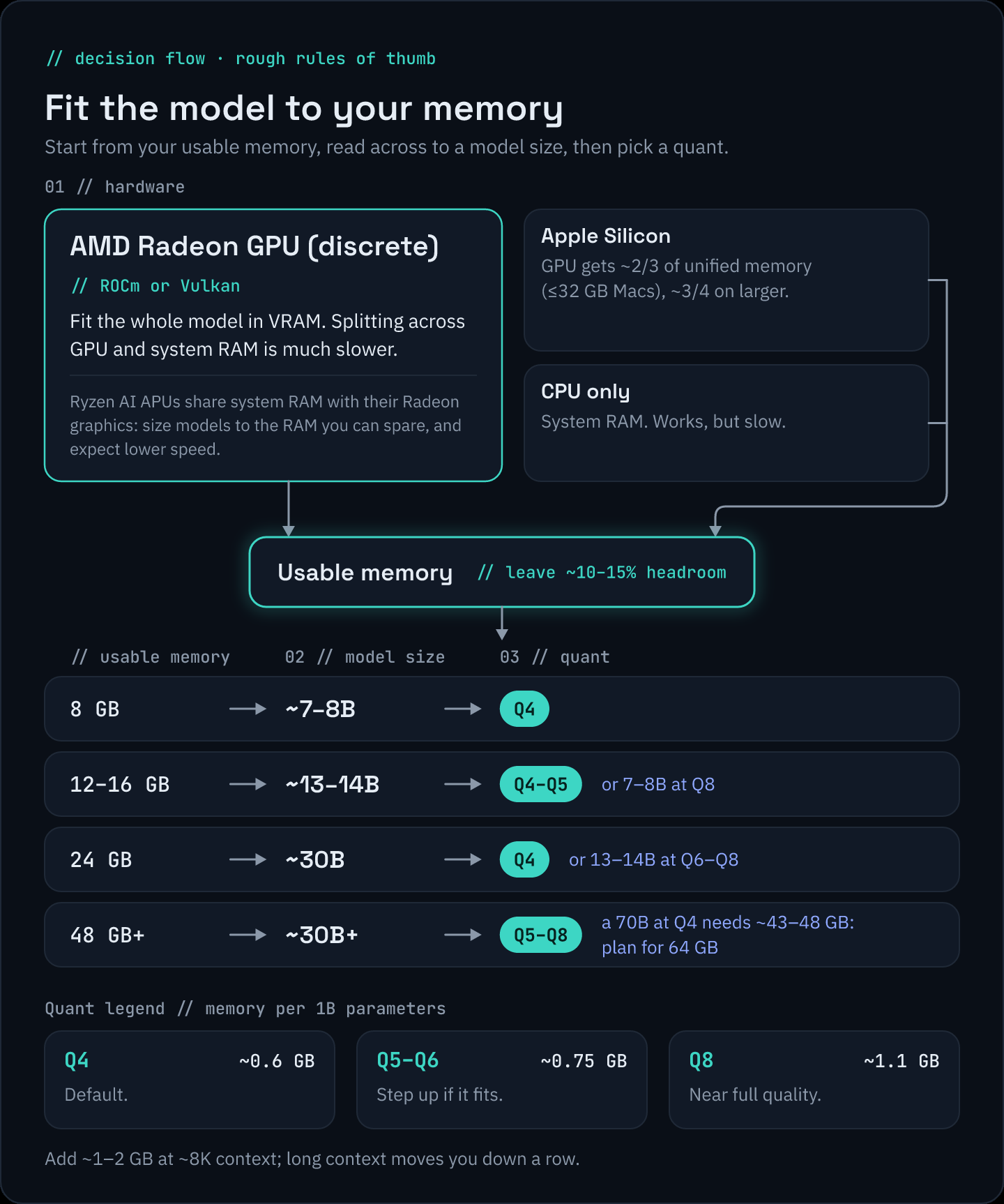
Three things use memory when a model runs. One published calculator spells out the formula (InventiveHQ):
Total memory ≈ weights + KV cache + overhead
Weights: parameters × bytes per parameter
A "7B" or "8B" model has 7 or 8 billion parameters. What that costs in memory depends on how many bytes each parameter takes, which is what quantization ("quant") changes.
| Format | Approx. bytes per parameter | 8B model weights |
|---|---|---|
| FP16 | 2.0 | about 16 GB |
| Q8_0 | about 1.06 | about 8.5 GB |
| Q4_K_M | about 0.61 | about 4.9 GB |
Bytes-per-parameter figures are from InventiveHQ, calibrated against real GGUF file sizes. They sit a little above the nominal bit width because some layers are stored at higher precision; for comparison, the base Q4_K format is 4.5 bits per weight, or about 0.56 bytes (Hugging Face GGUF docs). The last column is just 8 × the middle column.
Quick rule: per billion parameters, budget roughly 0.6 GB for weights at Q4_K_M, roughly 0.7 to 0.8 GB at Q5 to Q6, and roughly 1.06 GB at Q8_0.
Q4_K_M as the default, and when Q8 is worth it
Q4_K_M is the common default because it cuts memory to about 30% of FP16 with a small quality loss. Q8_0 is described as close to indistinguishable from FP16 but needs about 1.7 times the memory of Q4_K_M (InventiveHQ). Quants at 3 bits and below show noticeable degradation.
Practical rules:
- Start with Q4_K_M at the largest size that fits with headroom.
- Step up to Q5, Q6 or Q8 if you have memory to spare at that size, or if your tests (section 6) show failures on exact-format tasks such as JSON extraction.
- Prefer a bigger model at Q4 over a smaller model at Q8 for the same memory budget, until you are pushed below about 3 bits, where quality drops noticeably. Treat both as rules of thumb (InventiveHQ).
- Don't guess. If two options fit, test both on your tasks.
Context length and the KV cache
The model keeps keys and values for every token in its context window. This KV cache grows linearly with context length. For a standard grouped-query-attention model (InventiveHQ):
KV cache bytes ≈ 2 × layers × KV heads × head dimension × bytes per value × context tokens
The 2 is one K and one V. Worked through for a typical 8B architecture with 32 layers, 8 KV heads, head dimension 128 and an FP16 cache (2 bytes):
- Per token: 2 × 32 × 8 × 128 × 2 = 131,072 bytes, or 128 KiB
- At 8K context (8,192 tokens): 1 GiB
- At 128K context: 16 GiB, more than three times the Q4_K_M weights
Architectures differ, so check a calculator for your model. Two ways to cut the cache:
- Use less context. Set only what your tasks need.
- Quantize the cache. q8_0 uses about half the memory of f16 with usually no noticeable quality impact. In Ollama, set
OLLAMA_KV_CACHE_TYPE=q8_0(it needs Flash Attention, which Ollama turns on automatically on supported GPUs;OLLAMA_FLASH_ATTENTION=1forces it on. The setting applies to all models) (Ollama FAQ). In llama.cpp, use--cache-type-k q8_0 --cache-type-v q8_0(llama.cpp server README).
Parallel requests multiply the cache: in Ollama, required memory scales with OLLAMA_NUM_PARALLEL × OLLAMA_CONTEXT_LENGTH (Ollama FAQ).
Overhead and headroom
Add runtime overhead for buffers and the GPU context. As a rule of thumb, the InventiveHQ formula uses the larger of 6% of the weights or 0.75 GiB. Then leave headroom: running at 99% of memory works until a long prompt arrives. That calculator's authors suggest treating 85 to 90% as your practical ceiling.
Worked example: an 8B model at Q4_K_M with 8K context: about 4.6 GiB weights + 1 GiB cache + 0.75 GiB overhead ≈ 6.3 GiB (InventiveHQ). That fits an 8 GB card. At 32K context the same model needs about 9.3 GiB, and it no longer does.
Rough tiers. Applying the same formula at about 8K context gives these starting points for usable memory (VRAM, or the usable share of unified memory):
| Usable memory | Model size | Quant |
|---|---|---|
| 8 GB | ~7–8B | Q4 |
| 12–16 GB | ~13–14B | Q4–Q5, or 7–8B at Q8 |
| 24 GB | ~30B | Q4, or 13–14B at Q6–Q8 |
| 48 GB+ | ~30B+ at Q5–Q8 | a 70B at Q4_K_M needs ~43–48 GB, at or over the limit on 48 GB; plan for 64 GB or use a smaller quant |
These are rules of thumb, not guarantees. Long context moves you down a row.
4. Pick a runner and set it up on AMD
All three load GGUF model files, run on GPU or CPU, and expose an OpenAI-compatible API. If unsure, start with Ollama or LM Studio; you can switch later without changing client code.
ROCm on Linux: driver, permissions, check
The ROCm (HIP) backends need this; Ollama needs the ROCm 7 driver on Linux, installed with amdgpu-install (Ollama hardware support). Follow AMD's install guide for your distribution, then give your user access to the GPU and reboot:
sudo usermod -a -G render,video $LOGNAME
AMD's install guide verifies the installation with:
rocminfo
amd-smi version
rocminfo should list your GPU under "HSA Agents" with its gfx target; if it shows only your CPU, see "When the GPU isn't used". On Windows, install the Adrenalin version listed in the matrix.
Ollama
Linux install (Ollama Linux docs):
curl -fsSL https://ollama.com/install.sh | sh
For a manual install on AMD, extract the main package first, then the additional ROCm package:
curl -fsSL https://ollama.com/download/ollama-linux-amd64.tar.zst \
    | sudo tar x -C /usr
curl -fsSL https://ollama.com/download/ollama-linux-amd64-rocm.tar.zst \
    | sudo tar x -C /usr
On Windows and macOS, use the installer from the quickstart.
On AMD (Ollama hardware support unless noted):
- Backends. Ollama uses ROCm on the cards in its list. Vulkan, on by default, covers more AMD cards;
OLLAMA_VULKAN=0turns it off. On Windows, Ollama's ROCm list has only RDNA 3 cards (RX 7600 to 7900 XTX and PRO W7500 to W7900) and needs "an AMD ROCm v7 / HIP7-capable driver stack", so other cards, including the RX 6000 series, are expected to run through Vulkan instead (Ollama's Windows ROCm list doesn't include them). - Permissions. On some Linux distributions you may need to add the service user to the render group:
sudo usermod -a -G render ollama, thensudo systemctl restart ollama. If the GPU still isn't found, addvideoas well (Ollama's troubleshooting page mentions both). Under Vulkan,sudo setcap cap_perfmon+ep /usr/local/bin/ollamalets Ollama read free VRAM; otherwise it estimates. - Choosing GPUs. ROCm: set
ROCR_VISIBLE_DEVICESto a comma-separated list fromrocminfo. Vulkan: useGGML_VK_VISIBLE_DEVICES, for exampleGGML_VK_VISIBLE_DEVICES=1whenVulkan1is your discrete GPU. - Context defaults. By VRAM: 4K tokens under 24 GiB, 32K at 24–48 GiB, 256K at 48 GiB or more. Check CONTEXT in
ollama ps; raise it withOLLAMA_CONTEXT_LENGTHor a Modelfile (context length docs). - Strictly local. Ollama also offers cloud models;
OLLAMA_NO_CLOUD=1disables them (Ollama FAQ).
On Linux, set server variables with systemctl edit ollama.service: add Environment="NAME=value" under [Service], then run systemctl daemon-reload and systemctl restart ollama. The server listens on 127.0.0.1:11434 (Ollama FAQ).
LM Studio
A desktop app for browsing, downloading and chatting with models; start the API server from the Developer tab or with lms server start (LM Studio docs). It runs on Windows, Linux and Apple Silicon Macs and recommends 16 GB+ RAM and, on Windows, 4 GB+ dedicated VRAM (system requirements).
LM Studio "offers both Vulkan and AMD ROCm software backends (called runtimes) for AMD users" (AMD LM Studio playbook, LM Studio 0.4.17 changelog). To pick one:
- In the app: press
CtrlShiftRon Windows or Linux to manage runtimes (LM Studio docs), then choose one in the Runtime Selections dropdown (AMD LM Studio playbook). - From the command line (lms runtime), where
selectprompts you for the runtime and version:
lms runtime ls
lms runtime get
lms runtime select
Load a model with GPU offload at maximum, then confirm it runs on the GPU (below).
llama.cpp
The engine underneath many tools, run directly as llama-server, where you set context size, GPU layers, cache type, host, port and API key yourself (server README). On AMD, download a prebuilt release from llama.cpp's GitHub releases page (ROCm and Vulkan builds for Windows and Ubuntu), or build it yourself with HIP (ROCm) or Vulkan (build docs).
HIP on Linux. Install ROCm, and replace the example target gfx1030 with yours:
HIPCXX="$(hipconfig -l)/clang" HIP_PATH="$(hipconfig -R)" \
    cmake -S . -B build -DGGML_HIP=ON -DGPU_TARGETS=gfx1030 -DCMAKE_BUILD_TYPE=Release \
    && cmake --build build --config Release -- -j 16
GPU_TARGETS is optional; without it, llama.cpp builds for all GPUs in the system. For "cannot find ROCm device library" errors, the docs explain HIP_DEVICE_LIB_PATH.
HIP on Windows. Follow the Windows steps in the HIP section of the build docs.
Vulkan on Linux. Install the packages, check that vulkaninfo runs cleanly, then build:
sudo apt-get install libvulkan-dev glslc spirv-headers
vulkaninfo
cmake -B build -DGGML_VULKAN=1
cmake --build build --config Release
Windows Vulkan steps are in the build docs. In a Vulkan build's output, ggml_vulkan should report your GPU. With any build, --list-devices shows usable devices, and HIP_VISIBLE_DEVICES picks the GPU for HIP builds.
Older or unsupported cards
If your card is not on any ROCm list, try Vulkan first (section 2), as Ollama documents for cards outside its ROCm list.
There is also an unofficial Linux workaround: HSA_OVERRIDE_GFX_VERSION tells ROCm to treat your GPU as a similar, supported target:
- Ollama uses
x.y.zsyntax. Its example: the RX 5400 isgfx1034, unsupported; the closest supported target isgfx1030, so setHSA_OVERRIDE_GFX_VERSION="10.3.0"on the server (as anEnvironmentline). For mixed GPUs, set it per device, for exampleHSA_OVERRIDE_GFX_VERSION_0=10.3.0andHSA_OVERRIDE_GFX_VERSION_1=11.0.0(Ollama hardware support). - llama.cpp suggests
10.3.0for RDNA 2 cards (for example gfx1030, gfx1031 or gfx1035) and11.0.0for RDNA 3, and notes the variable is not supported on Windows (build docs).
The risk, plainly: this is not supported by AMD. AMD's ROCm 7.x documentation said that on unsupported GPUs 'the HIP runtime might continue to run applications', but 'prebuilt ROCm libraries are not officially supported and will cause runtime errors' (ROCm 7.2.1 system requirements). Our own advice on top of that: expect crashes, possibly wrong results, and breakage after driver, ROCm or runner updates. Use it at your own risk, and rerun your test pack (section 6) after every update.
When the GPU isn't used
First, confirm where it runs. Runners can silently fall back to the CPU. In Ollama, ollama ps should show 100% GPU under PROCESSOR while a model is loaded; any CPU share means some or all of it is on the CPU (Ollama FAQ). In llama.cpp, check the startup log or use --list-devices.
GPU not detected (Linux) (Ollama troubleshooting):
- If
rocminfodoes not list your GPU, runners cannot see it either. - Group membership: AMD GPU access "typically requires
videoand/orrendergroup membership to access the/dev/kfddevice". Re-runusermodabove and reboot. - More logging:
OLLAMA_DEBUG=1(GPU discovery) andAMD_LOG_LEVEL=3(ROCm libraries). Check the kernel log withsudo dmesg | grep -i amdgpuandsudo dmesg | grep -i kfd, and Ollama's log withjournalctl -u ollama --no-pager --follow --pager-end.
Driver or kernel mismatch. If Ollama's log shows failure during GPU discovery with failed to finish discovery before timeout, your driver is too old: Ollama's ROCm 7 libraries need a ROCm 7 kernel driver, so it falls back to CPU. Upgrade with amdgpu-install, reboot and restart Ollama (Ollama troubleshooting). On Ryzen APUs, AMD's install guide keeps the inbox kernel driver with --no-dkms (ROCm install guide).
Gibberish with several AMD GPUs. Ollama's troubleshooting page points to AMD's multi-GPU known issues (older ROCm 7.2.1 documentation; AMD has not yet published an updated version). For choosing GPUs, see AMD's current GPU isolation techniques.
WSL2 (ROCm 10.1.0 release notes):
- Check the WSL2 column in section 2; fewer cards are supported.
- It is a technical preview, packaged for Ubuntu only. The runtime detects WSL2 through
/dev/dxg, so usually no setup is needed. Profiling, debugging and KFD-dependent tools do not work yet. amd-smiis discovery and monitoring only; some reports, such as per-process GPU use, are unavailable.- Install the Adrenalin driver from the matrix on the Windows side.
5. Expose an OpenAI-compatible endpoint
An OpenAI-compatible endpoint means any tool or library written for the OpenAI API can talk to your local model by changing one setting: the base URL.
| Runner | Base URL | Start it |
|---|---|---|
| Ollama | http://localhost:11434/v1 |
Runs after install (docs) |
| LM Studio | http://localhost:1234/v1 |
Developer tab or lms server start (docs) |
| llama.cpp | http://localhost:9931/v1 (older builds: 8080) |
llama-server -m your-model.gguf -c 8192 |
llama-server listens on 127.0.0.1 by default. Builds b11521 and later (released October 9, 2026) use port 9931 by default; older builds used 8080. Pass --port if you want a fixed port (server README). Keep -c 8192 (or your own value): without it, llama-server uses the model's full trained context, which can be huge.
All three support /v1/chat/completions and /v1/models. Replace your-model below with the model name your runner shows (in Ollama, ollama list; in LM Studio, the model identifier).
curl:
curl http://localhost:11434/v1/chat/completions \
  -H "Content-Type: application/json" \
  -d '{
    "model": "your-model",
    "messages": [{"role": "user", "content": "Classify this ticket: printer offline after update."}]
  }'
Python (pip install openai):
from openai import OpenAI

client = OpenAI(
    base_url="http://localhost:11434/v1",  # LM Studio: 1234, llama-server: 9931 (older builds: 8080)
    api_key="not-needed-locally",          # required by the client, ignored by Ollama
)

reply = client.chat.completions.create(
    model="your-model",
    messages=[{"role": "user", "content": "Classify this ticket: printer offline after update."}],
)
print(reply.choices[0].message.content)
Ollama requires an API key value in the client but ignores it (Ollama docs). llama-server accepts any key unless you start it with --api-key.
Two cautions:
- Compatibility is partial. Ollama, for example, documents which request fields it supports;
tool_choiceandlogprobsare not on its list (Ollama docs). Test the features you depend on. - Keep it on localhost. All three bind to your own machine by default. If you expose the server to your network (
OLLAMA_HOST, LM Studio's "Serve on Local Network", or llama-server--host), anyone who can reach that port can use your model. Set an API key where the runner supports it and never expose it directly to the internet.
6. Test it with our harness
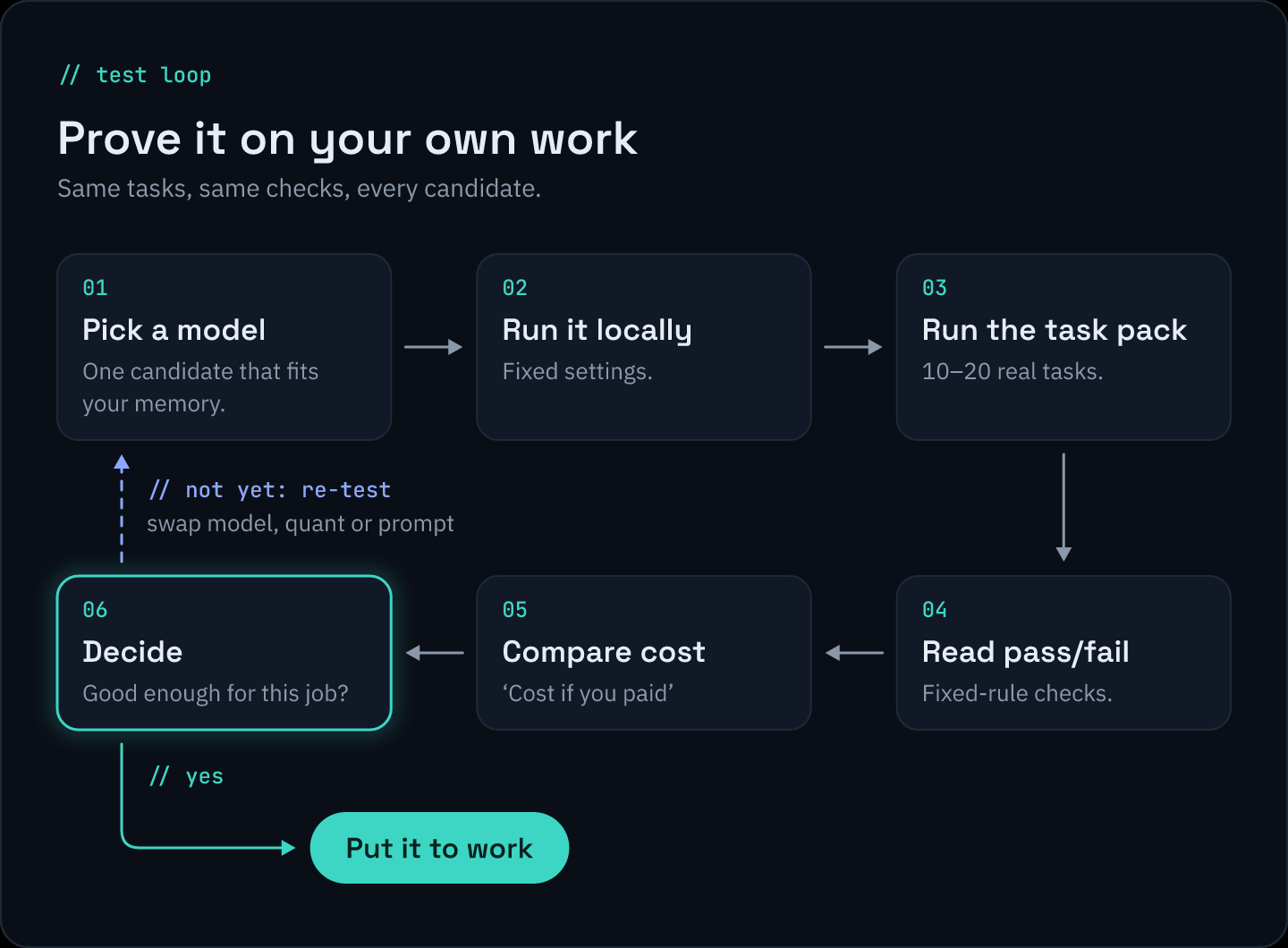
A model that answers "hello" is not a model that does your job. Our free harness, local-llm-bench, tests whether a model does your tasks, against any OpenAI-compatible endpoint. It is not a general model ranking.
Get it: starters/local-llm-bench on GitHub
Run it
It needs Python 3.9 or newer, nothing to install. From the starters/local-llm-bench/ folder, with your server running:
python3 bench.py
With no options, it uses the first server that answers, in this order, and the first model that server lists:
- Ollama:
http://localhost:11434/v1 - LM Studio:
http://localhost:1234/v1 - llama.cpp:
http://localhost:9931/v1(currentllama-serverdefault) - llama.cpp:
http://localhost:8080/v1(older builds and Docker)
If nothing answers, it prints this list and exits. To choose yourself:
python3 bench.py --base-url http://localhost:1234/v1 --model YOUR_MODEL
Replace YOUR_MODEL with the model ID your server lists, and change the URL if your server uses a different port.
Hosted APIs such as OpenRouter or Workers AI work the same way with their base URL. Never put the key on the command line; the harness reads it from BENCH_API_KEY (or the variable named by --api-key-env):
export BENCH_API_KEY='YOUR_API_KEY'
Replace YOUR_API_KEY with your provider's key.
What it tests
The built-in pack has 20 tasks on made-up data: ticket and email triage, log summaries, invoice and contact extraction, SQL, regex and shell-command writing, date and CSV transforms, invoice and SLA math, PII redaction, password and prompt-injection checks, and policy summaries.
Grading is pass/fail by fixed rules, never another AI: exact answers, required words, valid JSON fields, numbers within a tolerance, and regexes run against test cases. A task passes only if every check passes, and the same output always gets the same grade.
Add your own tasks
The real value is your tasks. Copy a file in tasks/ and give it a new id, a strict prompt, "synthetic": true and its checks. --only runs selected tasks (--list-tasks shows the IDs):
python3 bench.py --only ticket-triage,date-normalize
Use invented or redacted data. Ten tasks you actually do beat a hundred generic ones. The README lists every check type.
Read the results
The terminal table shows pass/fail, latency, and tokens in and out per task. Each run also writes Markdown, CSV and JSON to results/ (set with --out), with latest.* copies. The JSON keeps the raw output, so you can check the grading.
Cost if you paid estimates what the same token counts would cost on hosted models: gpt-4o-mini, claude-haiku-4-5 and gemini-2.5-flash by default, or your own list with --compare a,b,c. Prices come from a snapshot of LiteLLM's MIT-licensed price list with a "prices as of" date. Tokenizers differ and prices change, so treat it as an estimate.
How to use the table:
- Look at failures first. Read the model's actual output. A failed JSON task might be a broken format (try a larger quant or model) or a misread prompt (fix the prompt).
- Change one thing at a time: model, quant, context length or prompt. Then run again.
- Run twice before trusting a close result.
7. Compare local vs free cloud vs paid
Run the same task pack against each option. Because the harness talks to any OpenAI-compatible endpoint, a free hosted tier and a paid API are just different --base-url values.
Weigh five things:
| Factor | What to look at |
|---|---|
| Pass rate | Did it pass the tasks you care about most? A high average can hide a failure on your most important task. |
| Speed | Time per task from the table. Is it fast enough for how you will use it? |
| Cost per run | Local: hardware and power. Paid: the "cost if you paid" column, multiplied by your real monthly volume. Free tiers: rate limits and terms. |
| Privacy | Where does your data go? Read each provider's data-use terms, especially for free tiers. |
| Maintenance | Local means you update runners, manage disk space and keep the machine on. Cloud means providers can change or retire models. |
The "cost if you paid" column is the bridge. If local passes your tasks and the paid estimate at your volume is meaningful, local is earning its keep. If local fails tasks a paid model passes, that column tells you what fixing it would cost.
Save your results with dates. They will tell you more than any general benchmark.
8. Decide and maintain
Decision rules
- Local passes your important tasks and is fast enough: use local. Keep a cloud option for overflow or harder jobs.
- Local passes most tasks but fails a few: route those few to a cloud model and keep the rest local.
- Local fails tasks a cloud model passes, and a larger model will not fit: use cloud for now, or price out more memory with the section 2 calculators.
- Your data cannot leave the building: local is the only option. Narrow the tasks until a model that fits can pass them.
When to re-test
- A new model release in the size class that fits your hardware
- A runner update (Ollama, LM Studio or llama.cpp), since defaults and performance change
- Your tasks change, or you add new ones
- Cloud price changes
Re-run the same pack and compare against your saved results.
Switch models safely
- Keep the current model installed while you test the new one.
- Run the full task pack on both and compare the exported tables.
- Switch only if the new one is at least as good on your important tasks.
- Change only the model name in your tools; the base URL stays the same.
- Keep the old model for a week before removing it, so you can roll back.
How this guide was made
This guide was written with AI assistance and fact-checked against the official documentation linked throughout, as of October 2026. Runners change quickly, so check the linked docs if a command doesn't behave as described.